
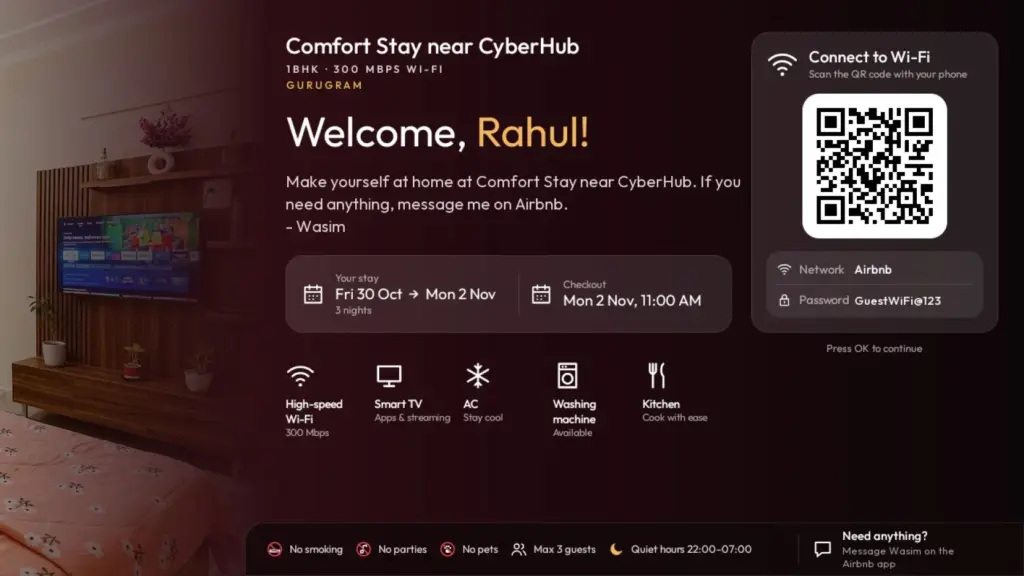
Every short-stay host knows the messages that arrive within an hour of check-in. What’s the Wi-Fi password? What time is checkout? Can I smoke on the balcony? I got them with almost every booking at my own flat, so I built Welcome TV: an Android TV app that greets each guest by name and puts those answers on the one screen every guest looks at.
This post covers the problem, what I built, how it helps hosts and guests, and a step-by-step setup guide with screenshots and download links.
The problem I had as a host
I host a one-bedroom on Airbnb in Gurugram, Comfort Stay near CyberHub. The flat came with a OnePlus Android TV, and like most rental TVs it gave guests nothing useful: a home screen full of ads and apps they would never open.
Meanwhile, the same questions arrived with almost every booking. What’s the Wi-Fi password? What time is checkout? What are the house rules? What should I do with the keys when I leave? The answers were in the listing and the welcome message, but a guest who has just walked in with luggage doesn’t go and look for them. They message the host instead, and the host answers the same thing again.
The TV is the one screen every guest looks at, and it was the obvious place to put those answers.
What I built
First I cleaned up the TV itself. I switched off its ads and tracking apps and gave it a simple Apple TV-style home screen with the open-source cleanyourtv project. Then I built a welcome screen that opens when the TV is switched on.
Welcome TV is that screen, rebuilt so any host can use it. It has two parts:
- An Android TV app that shows the welcome screen and opens by itself whenever the TV is switched on, including after a power cut.
- A web dashboard at tv.thewasim.com, where you type in your property’s details once and connect your booking calendars.
The screen changes through a stay on its own:
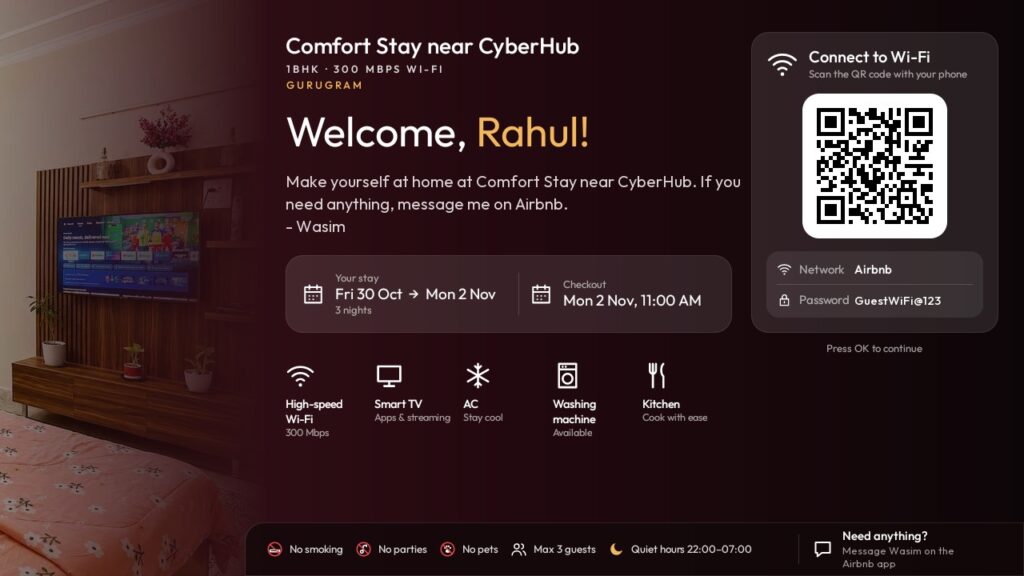
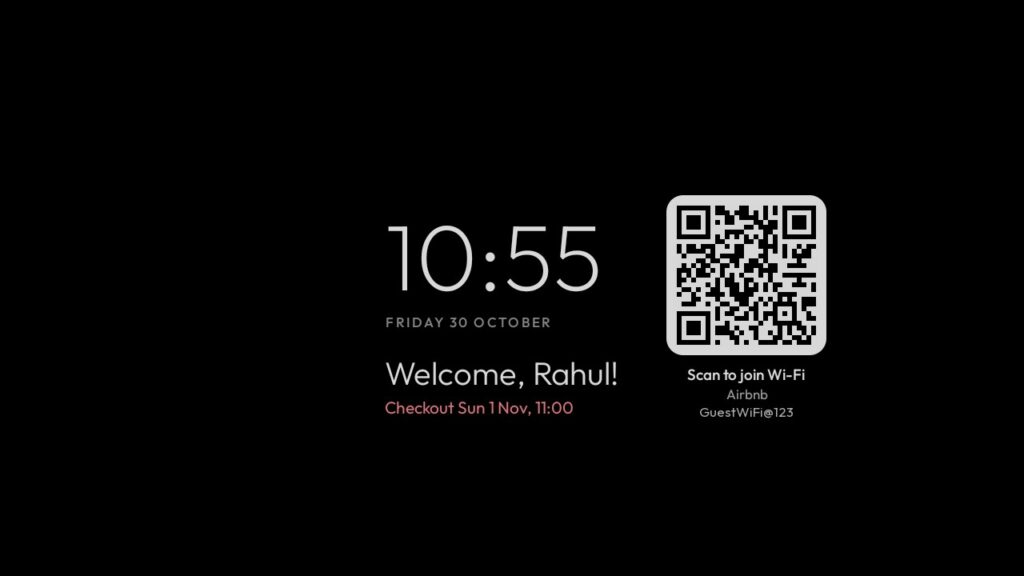
- During a stay it says “Welcome, Rahul!” with the guest’s stay dates, the number of nights, the checkout time and a row of amenities. A Wi-Fi card shows a QR code, the network name and the password, so guests can join in one tap.
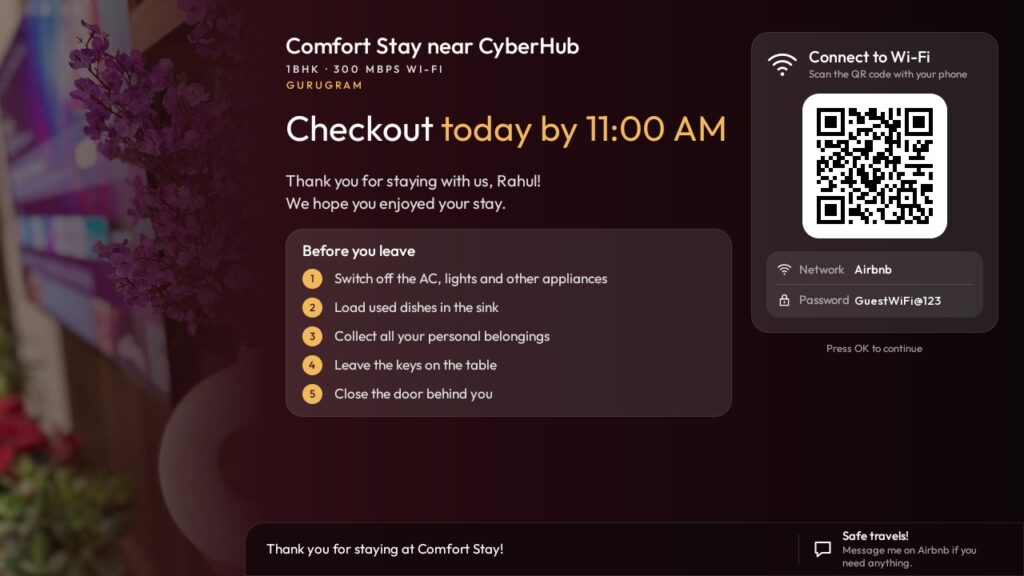
- On checkout day it switches to “Checkout today by” and your checkout time, with your checkout steps numbered and a thank-you line.
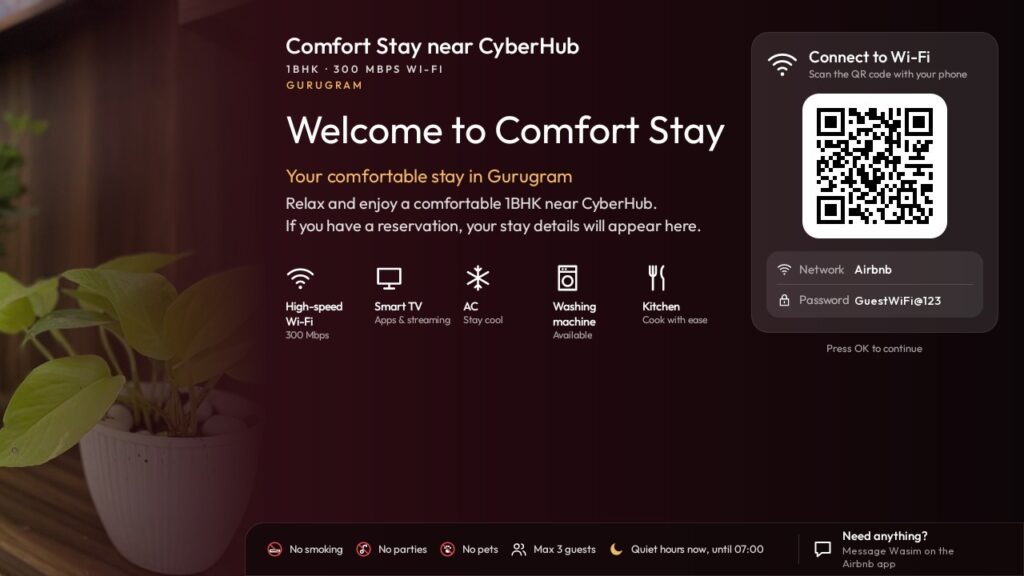
- When nobody is booked it shows “Welcome to” and your property’s name.
- After five minutes without use a screensaver shows the clock, the greeting and the Wi-Fi QR code, and moves around so nothing burns into the screen.
A bar along the bottom always shows your house rules, quiet hours and how to reach you.
How hosts and guests benefit
- Fewer repeated messages. Wi-Fi, checkout time, house rules and checkout steps are on screen from the moment the guest arrives.
- A personal welcome. Seeing their own name on the TV makes guests feel expected, which is the feeling hosts want to show up in reviews.
- Smoother checkouts. On the last morning the TV reminds guests of the time and of what to do before they leave, so you find fewer surprises when you get there.
- House rules guests actually see. No smoking, no parties and quiet hours are on screen every day, not hidden in the listing.
- Nothing to update by hand. Once your Airbnb, Booking.com or VRBO calendars are connected, bookings appear on the TV by themselves. If the internet drops, the TV keeps working from the last data it saved.
- Works for direct bookings too. A guest who booked with you on WhatsApp and paid by UPI can be added in the dashboard in a few seconds.
- Several properties, one account. Each TV is linked to a property, and you can move or unlink it at any time.
Setting up Welcome TV, step by step
You need an Android TV or Google TV running Android 8 or newer, and a phone or computer for the dashboard.
Step 1: Add your property in the dashboard
Open tv.thewasim.com, sign in with your email or Google account and choose “Add a property”. Enter its name as guests know it, the area or city, your first name and a WhatsApp number for guests.
Step 2: Fill in what guests should see
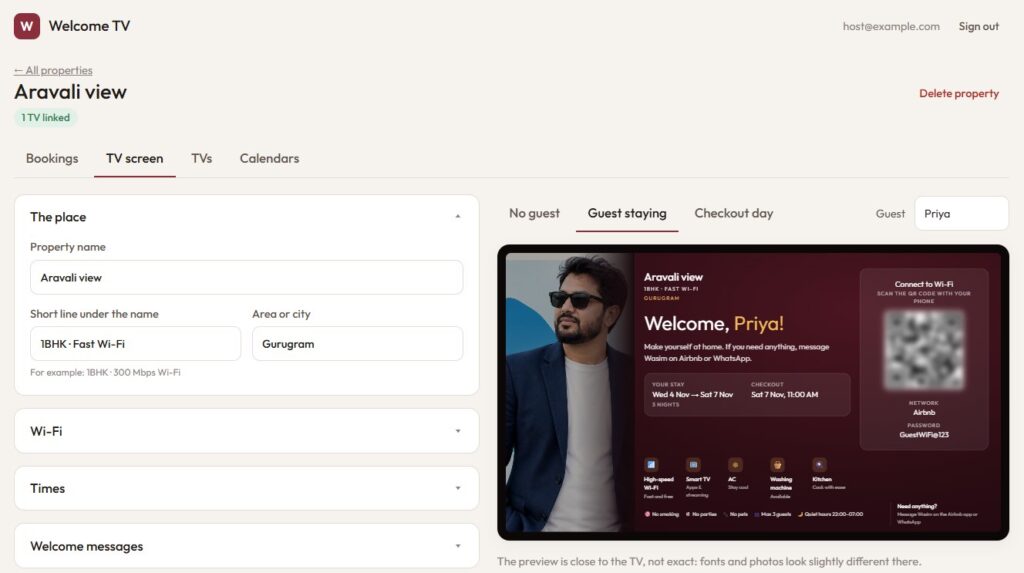
Work through the sections: the place, Wi-Fi (network, password and security type), check-in, checkout and quiet hours, your welcome messages, amenities, house rules, checkout steps, photos and your contact. In the welcome message, {name} becomes the guest’s first name, or just “Welcome!” when there is no name. For photos, upload a normal photo and the TV crops and darkens it. A live preview beside the form shows the TV screen as you type.
Step 3: Connect your booking calendars
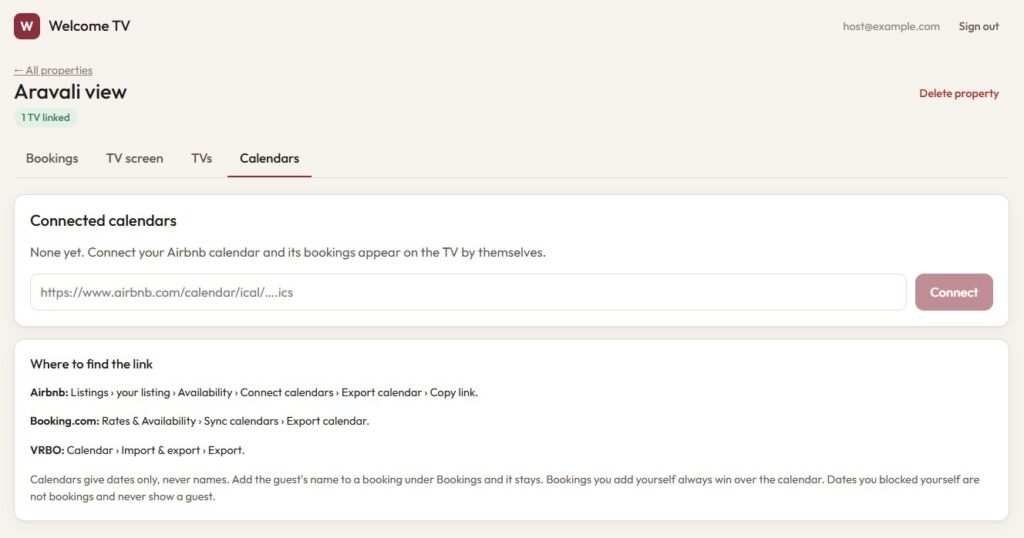
In Airbnb, Booking.com or VRBO, copy your listing’s calendar export link (it ends in .ics) and paste it into the Calendars section. Bookings then appear in the dashboard and on the TV by themselves.
Step 4: Add guest names and direct bookings
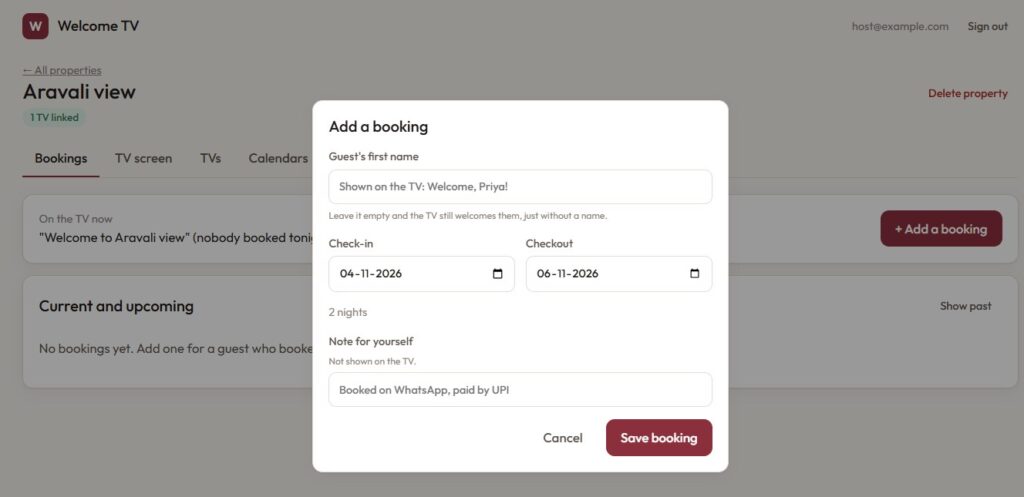
Calendar links carry dates only, not guest names, so add the guest’s first name to a booking if you want the TV to greet them personally. Bookings you took yourself, outside the platforms, you add here with the dates and the guest’s first name. Each booking is labelled, for example “Staying now”, “Arrives tomorrow” or “Checks out today”.
Step 5: Install the Welcome app on the TV
The TV app isn’t on the Play Store yet, so it is installed from an APK file:
Download Welcome TV for Android TV (APK)
The easiest way is from a computer on the same Wi-Fi as the TV. Turn on Developer options and network debugging in the TV’s settings, then run:
adb connect <TV's IP address>:5555
adb install welcome-tv-1.0.apk
Or download the file on the TV with a browser, or copy it to a USB drive and open it with a file manager. When the TV asks, turn on “Install unknown apps” for the app you opened it with.
Step 6: Link the TV to your property
- Open the Welcome app on the TV. It shows a six-character code and a QR code.
- In the dashboard, choose “Add a TV”.
- Type the code. Within seconds the TV shows your property.
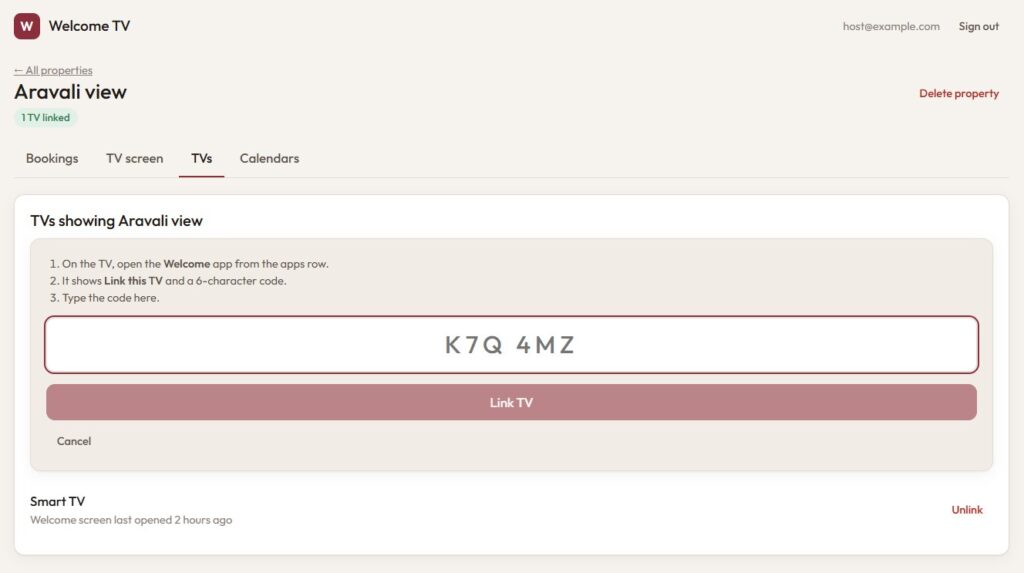
That’s it. From now on the app opens by itself when the TV is switched on.
Want it done for you?
If you’d rather not touch ADB or TV settings, I can set it up for you: install the app, link it to your property and check that everything shows correctly. Welcome TV is in early access and pricing hasn’t been set yet. If you host a short-stay rental, get in touch.
Questions hosts ask
Is Welcome TV on the Google Play Store?
Not yet. Until it is, the TV app is installed from the APK file above.
Is it safe to install an APK?
Only install APKs from a source you trust. This file is served from thewasim.com, and Android asks you to allow each app that installs another app, so nothing installs without your permission.
Which TVs does it work on?
Android TV and Google TV devices running Android 8 or newer.
Does it work with Booking.com and VRBO, or only Airbnb?
All three. Paste each listing’s calendar export link, and add direct bookings by hand.
What happens if the internet goes down?
The TV keeps showing the last data it saved, so guests still see the Wi-Fi details, the house rules and their stay.
Does Welcome TV store my guests’ details?
Only what you type into the dashboard, such as a guest’s first name and stay dates. Guests never sign in or give the TV any information. The privacy policy explains what is stored, and you can delete your account at any time.
Try Welcome TV
- Welcome TV project page, with the full feature list
- The dashboard at tv.thewasim.com
- The TV app (APK)
If you try it, or you would like it set up at your property, tell me how it goes.
I also built Noor, a private prayer-times app for Android TV that plays the Adhan on time. Read Noor: a private prayer-times app for Android TV, with the Adhan on time.